Album
- - Upload photos
- - Increasing photo album space
- - Functions
- - Temporary space for making photos
- - Sharing your photos
- - Public categories
- - Voting
- - Commenting photos
Upload photos
To upload photos:
- Log in with your user name and password.
- Press bottom “Upload photos” .
- Select the way to upload “Fast upload”, “PRO” or Picasa.
- Transform selected photos.
Fast upload
- State the place to upload your photos:
- “Upload to existing” - select catalog in opened meniu;
- “Upload to new” - photos will be uploaded to new album (it will be automatically named after uplaoding date - you can type new name in this field).
- Press icon "Load" and direct photos (which you want to uplaod) from your computer. You can view them in the same window - press icon in the right.
- You can see the process of indicating.
- When all photos will be uploaded, all photos will be in "My album".
PRO
Java virtual machine (JVM) support must be installed in your computer if you want to use "PRO" photo upload. You can upload it by pressing "here" link in the bottom.
During the process you will be asked if you want to install offered software. Answer “Yes”.
- Press "upload" icon in the bottom of “PRO”.
- Wait untill Java window will load (you will see your computer catalog structure when it happens).
- Direct catalog of the photos you want upload.
- Mark pictures you want to transform.
- Press “To the list”.
- Wait untill selected photos appears in the window on the right.
- Press “Upload”.
- Process indicating window will appear. Wait untill you see "Finished" in it.
Increasing photo album space
To increase your free photo album space:
- Log in with your username and password.
- Press your selected point number on the left.
3.1. If the number of your points is enough for one of user privilege - additional space for free album for one year - you can fill your album. Selected points will be replaced by additional space in your album. Press "i choose" near the appropriate album space.
3.2. If you don't have enough points for additional album space, you can buy it. In order to buy additional album space select additional size you desire by stating number of additional 10MB (for example type 10, if you want to fill space with 100MB), note the way of payment (you can pay with Swedbank e-bank) and press “Buy”. If any of these payments is not suitable, you can pay by commission and report us via e-mail.
Functions
Catalogs
New catalog. For creating new catalog.
- Press icon “New catalog” .
- Name catalog (you can write comments).
- Press “Submit”.
- Select pictures you want to copy.
- Press icon “Copy to catalog”.
- Select catalog for photo copies in opened meniu.
Transform to catalog. Transforms photos to selected catalog.
- Tick photos you want to transform.
- Press icon “Tranform to catalog”.
- Select catalog for photo transformation in the opened meniu.
Jump to catalog. Jumps to selected catalog.
- In the opened meniu select catalog you want to jump in.
- Press icon “Jump to catalog”.
Publicizing
Publicize. Publicizing photos or making them unpublished again.


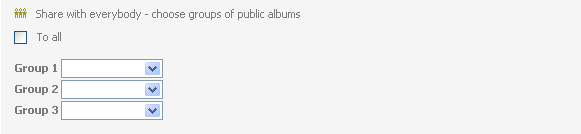
3 public level - photos are in public albums and might be viewed for every visitor.
You can choose three levels of public albums.
Operations
Tick all. Marks all photos in the page. To take off the tick off separate photo just click window in the bottom
Delete selected. Delete selected catalogs and photos.
- Select photos and albums you want to delete.
- Press icon “Delete selected”.
- “Are you sure you want to delete?” - press “OK” (to delete) or “Cancel” (to cancel).
Change record. You can rename catalogs or write a comment.
- Select photo.
- Press icon “Change record”.
- You can change name or write description.
- Press icon "Submit".
View. You can view selected photo.
- Select photos you want to view.
- Press icon “View”.
Turn to left. Turns picture to left.
- Select photo you want to turn.
- Press icon “Turn to left”.
Turn to right. Turns picture to right.
- Select picture you want to turn.
- Press icon “Turn to right”.
Add to favorites. You can choose photos from your or public album.
- Select picture you want to add to favorite.
- Press icon “Add to favorites”.
Making
Download original. You will transform original photo to your computer.
- Tick photo (photos) you want to download.
- Press icon “Download original”.
Make. Order for printing will be started.
- Select photo(-s), you want to print.
- Press icon "Make”.
Temporary space for making photos
- Log in with your user name and password.
- Press the button "500 MB for production" on the left.
- Temporary catalog for making will be created in your album. You can uplaod photos for printing in there.
- Uplaod photos for making in catalog you create.
Sharing your photos
Only you will be able to see uploaded photos (after you log in with your user name and password). First level of publicity (icon of one man).
To assign second level of publicity to your photos:- Log in with your user name and password.
- Choose zone "Photo services"
- Press meniu section “MY ALBUM”.
- Press “Log in for quests” in the lower - level bottom meniu.
- Press " New"
- Create user name and password for your quests.
- Press “Submit”.
- Go back to “My album”.
- Tick photos or albums for 2 public level.
- Press “Publicize” (icon with 2 men).
- Select functions available for the quest (view, send, make).
- Press “Publicize”.
- Log in with your username and password.
- Choose zone "Photo services"
- Press meniu section “MY ALBUM”.
- Tick photos or albums which you want to publicize.
- Press “Publicize” (icon with 3 men).
- Select categories for your public photos.
- Press “Publicize”.
If you want to make your photos unpublic:
- Log in with your user name and password.
- Choose zone "Photo services"
- Press meniu section “MY ALBUM”.
- Tick photos with 2 or 3 public level.
- Press “Publicize” (icon with 3 men).
- Press „Unpublicize“.
Public categories
Voting
Commenting photos
Only registered users of Fotofabrikas.lt can comment photos:
To comment photos:- Log in with your user name and password.
- View photo and comment in below given window
- Press "Comment".
Fotofabrikas.lt ordered goods delivery in Lithuania and in Europe. From now on the largest cities...
Fotofabrikas.lt represents a novelty - the hand made gift coupons of photo studio . It is an ex...
Fotofabrikas.lt expands sphere of services and near to a photo services offers video of service. ...